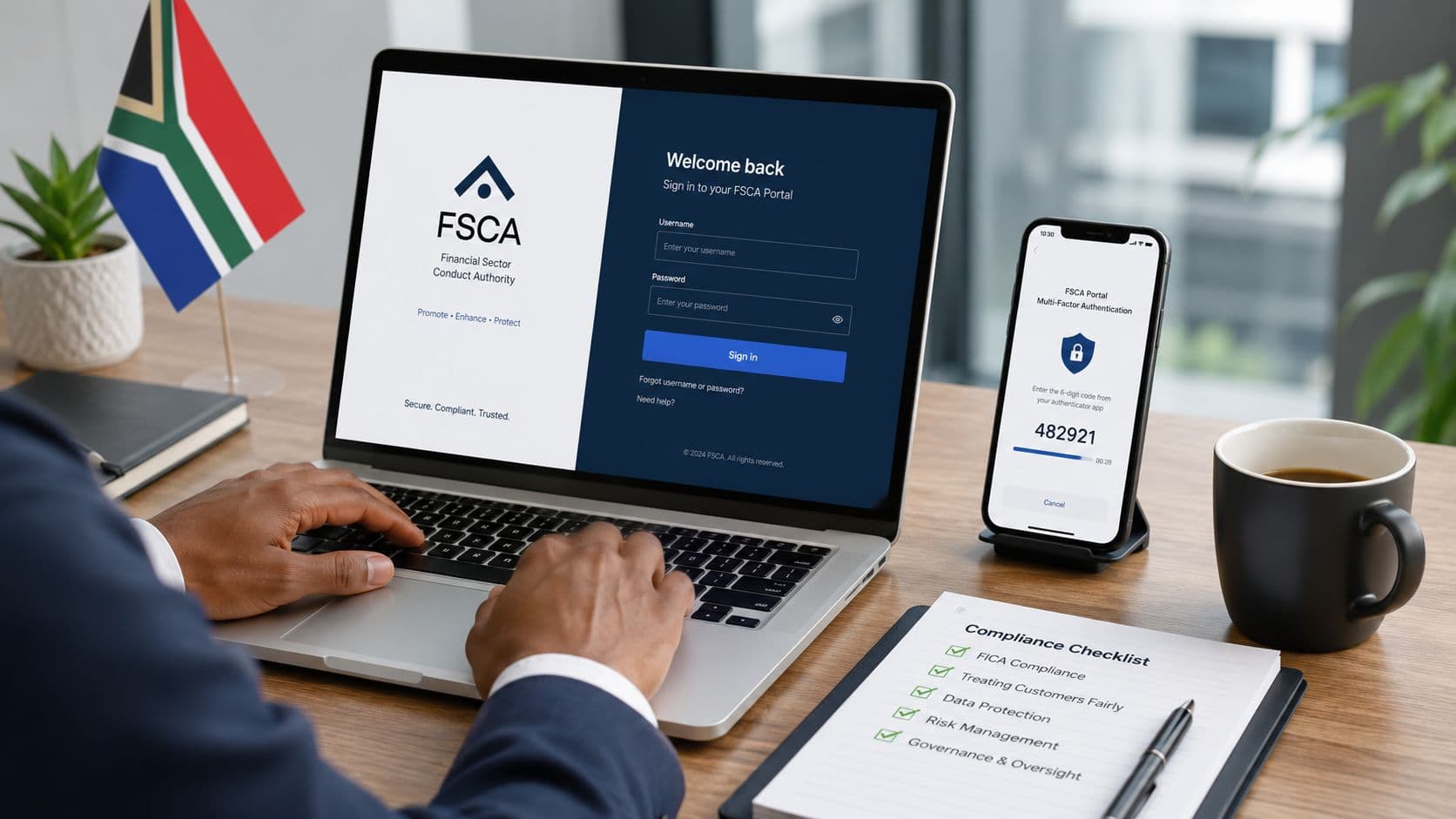
It usually starts the same way. Someone in finance gets asked to submit a report, confirm a licence detail, or update regulated-entity information, and they type “FSCA login” into Google expecting one clean portal. Instead, they land on a mix of public pages, sign-in prompts, and regulated-entity menus that don't clearly tell them which path fits their task.
That confusion matters because the FSCA website login isn't just an admin step. For many South African firms, it's the gatekeeper to regulated work that can't wait until someone “figures out the website later”. If you're onboarding a new team member, the most useful thing you can give them isn't only the password. It's a clear understanding of which FSCA login they need, who should use it, and what to check before they assume the portal is broken.
Why Your FSCA Login Is a Critical Compliance Tool
A lot of teams still treat the FSCA site like a noticeboard. They go there to read circulars, check a name, or confirm whether a provider appears on a register. That's only part of the picture.
The Financial Sector Conduct Authority says it regulates and supervises market conduct to enhance the efficiency and integrity of the financial system and protect financial customers. On its regulated-entities portal, it also lists digital services available after registration, including new licence applications, submission of compliance reports, and updating contact details on the FSCA sign-in and regulated services page.

It's an operational gateway, not a reference page
When a new finance team member asks, “Where do I log in?”, the better question is, “What are you trying to do?” That's because the FSCA's digital setup is tied to regulated-entity workflows, not a single generic sign-in experience for every user.
In practice, firms use FSCA access for tasks such as:
- Licensing activity if the business is applying for a new licence or handling related submissions
- Compliance reporting when statutory returns or required reports need to go in through the proper channel
- Entity maintenance if contact details, representative records, or linked user permissions need attention
- Status checks when the team needs to confirm regulated details before acting
Why finance teams get stuck
The failure point usually isn't the password first. It's path confusion.
A junior team member may land on a public FSCA page and assume they're in the right place because they can see “sign in”. Then they discover the account they have doesn't match the task in front of them. Or they ask a representative to submit something that only a compliance officer or properly authorised user can handle.
Practical rule: Don't hand over “the FSCA login” as if there's one universal access route. Hand over the correct portal path, the user role, and the task owner together.
What works in real life
The teams that struggle least with FSCA access usually do three things well:
- They separate public lookups from secure submissions
- They assign portal responsibility by role, not by convenience
- They document the exact login path for each recurring task
That sounds basic, but it prevents the most common waste of time. The problem often isn't that the FSCA portal won't work. It's that the wrong person is trying to enter through the wrong door.
Finding the Official FSCA E-Services Login Page
The cleanest way to approach the FSCA website login is to stop searching for a generic sign-in page and start from the official navigation path used for regulated submissions.

Use the regulated-entity path, not a random search result
The official user guide for beneficial ownership filing instructs users to follow the path FSCA website → Regulated Entities → E-Services → FAIS → FAIS E-portal in the FSCA beneficial ownership user guide.pdf). That matters because it confirms something many teams learn the hard way. Login troubleshooting should start with portal-path validation.
If your team member says, “My credentials don't work,” first check where they are trying to log in.
A practical workflow looks like this:
- Open the main FSCA website.
- Go to Regulated Entities.
- Choose E-Services.
- Follow the path into FAIS if that's the workflow tied to your task.
- Use the FAIS E-portal or direct portal entry only once you've confirmed it matches the submission type.
Bookmark the final page you actually use
Teams often bookmark the homepage. That's not enough.
Bookmark the last page in the path that your team uses for submissions. If your compliance officer files through the FAIS E-portal, save that exact destination in your internal procedures. It reduces the chance that someone returns later and starts from the wrong page again.
The homepage helps you orient yourself. The portal page helps you work.
New users need more than credentials
For first-time users, access usually depends on how the account was registered and which role it was given. That's where many handovers fail. A compliance manager may assume a finance admin can “just log in and submit”, but the portal may be set up around a specific regulated role or entity-linked permission.
Before a new key person starts, confirm:
- Which entity they're attached to in the portal workflow
- Which task they are expected to perform
- Whether their role allows viewing only or actual submission
- Who owns the master relationship with the regulator if access has to be changed
This short explainer helps if someone is still orienting themselves:
A quick authenticity check
Before anyone enters credentials, verify that the page is part of the official FSCA web environment. In internal training, I'd rather have a staff member spend an extra minute checking the domain and path than rush into a login screen they found through search.
That's especially important when teams share urgent filing tasks across finance, compliance, and management. Under pressure, people click quickly. Good process slows them down just enough to avoid a bad login habit.
Password Resets, MFA, and Securing Your Access
Once you're on the right portal, the next issue is account control. At this stage, teams often focus only on password resets and ignore the larger risk. The FSCA environment is role-based, so weak access management can create much bigger problems than one locked-out user.
The FSCA Regulated Entities portal allows different actions depending on registration type, including new licence applications and compliance reports, as shown on the FSCA regulated entities portal. That means a compromised account may affect more than one workflow.
Start with the account owner question
If login fails, don't jump straight to “forgot password”.
First ask:
- Who is the actual account holder
- Which email address was used for registration
- Whether the user is trying to access the correct entity
- Whether the account still has the needed permissions
A password reset won't fix a role mismatch. It also won't help if the person logging in was never the proper authorised user for that submission in the first place.
What secure teams do differently
Strong portal practice is usually boring. That's a good sign.
Use a controlled internal process for credentials and recovery details. Avoid informal sharing through chat messages, handwritten notes, or old email threads. If the compliance officer, CFO, and operations lead all need visibility, assign access deliberately and document who approves changes.
Security reminder: In a role-based portal, “Can log in” and “Can submit this filing” are not the same permission.
A workable internal checklist
If your business handles recurring FSCA submissions, keep this list in your compliance file:
- Use unique credentials: Don't reuse passwords from banking, SARS, or email systems.
- Control handovers carefully: When staff leave or move roles, review who still has portal access.
- Keep recovery details current: Outdated emails and mobile numbers create avoidable delays.
- Watch for fake login prompts: Staff should type carefully and verify they are on the correct official path before entering credentials.
- Log out on shared devices: This matters in small offices where several people work on one machine during deadline periods.
If your portal setup includes additional verification steps, treat them as a safeguard, not a nuisance. In regulated environments, friction is often part of the control.
Troubleshooting Common FSCA Access Errors
Most FSCA access problems are less dramatic than they feel in the moment. Usually, the issue is one of three things: the wrong browser, the wrong credentials, or the wrong user trying to perform the task.
FSCA filing guidance requires Chrome, Safari, or Firefox for access and notes that client support is available 24/7/365 in the FSCA filing and browser guidance document. That's a useful clue. It suggests many failed logins come from the user environment rather than from broad platform downtime.
Read the symptom before you react
When a user says “the portal is down”, ask what they see on screen. “Invalid credentials”, “access denied”, a frozen page, and a page that won't load are different problems.
Here's a practical reference table you can keep in your team notes.
| Error Message / Symptom | Likely Cause | How to Fix It |
|---|---|---|
| Invalid username or password | Wrong credentials, reused old password, typing error | Re-enter carefully. Check whether the username is the correct registered one. If needed, start the reset process through the proper portal path. |
| Access denied after login | User has a valid account but lacks the required role or linked entity permission | Confirm whether the task must be completed by a compliance officer or another authorised user. Review the account's assigned access. |
| Login page loads badly or buttons don't respond | Unsupported browser or unstable browser environment | Switch to Chrome, Safari, or Firefox. Close duplicate tabs, refresh, and retry in a clean session. |
| User reaches a sign-in page but can't find the required function | Wrong portal path for the task | Return to the regulated-entity navigation route and confirm the correct e-services path before logging in again. |
| Team can view public information but not submit | Confusion between public site access and secure e-portal permissions | Separate lookup activity from submission authority. Make sure the user is entering the secure portal tied to the regulated workflow. |
| Urgent filing blocked and no internal admin can help | Account owner unavailable or unresolved credential issue | Escalate through the available support route and involve the person responsible for entity-level access governance internally. |
The browser issue is more common than people think
In many offices, someone tries the portal through whatever browser opens by default. If the page behaves oddly, they assume the regulator's system is faulty.
Standardise this internally. Pick one approved browser for FSCA work and train the team to use it every time. That removes one variable immediately.
Access denied often means governance, not technology
This is the mistake I see most often in handovers. A new user gets into the system but can't complete the task, so the team treats it as a technical problem. It may not be.
If the portal is role-based, the account may be functioning exactly as designed. The user does not have authority for that action.
A valid login only proves identity. It doesn't prove permission to submit on behalf of the business.
What to do before escalating
Run this short check in order:
- Confirm the exact portal path
- Try an approved browser
- Verify the username tied to the registered profile
- Check whether the task belongs to a compliance officer or another authorised role
- Only then escalate as a support issue
That order saves time because it separates environment problems from access-control problems.
When Your Business Needs FSCA Portal Access
Some companies only think about the FSCA portal when a deadline lands in someone's inbox. That's too late. The better approach is to know which business events trigger portal use so the right person is ready before the filing window becomes urgent.
During the 2023/24 period, the FSCA received 11,465 annual financial statements and opened 518 new investigation cases, according to reporting on the FSCA annual report figures. That scale tells you something important. The portal isn't occasional infrastructure. It supports ongoing, high-volume regulatory interaction.

The common triggers inside a business
For most finance and compliance teams, FSCA portal access becomes necessary in moments like these:
- Annual reporting deadlines when statements, reports, or confirmations must be submitted through the proper channel
- Licence activity if the business is applying, updating regulated details, or dealing with approvals linked to its authorisation
- Entity changes when contact details, representative records, or internal responsible persons change
- Regulatory follow-up when the firm needs to respond to a query, check status, or deal with a matter that can't be handled through a public page alone
Why this matters for smaller teams
In a large institution, one person may own FSCA access full-time. In a smaller South African business, that rarely happens. The CFO, finance manager, external compliance officer, and admin staff may all touch the process at different points.
That creates a practical risk. The business knows the filing is due, but nobody is sure who has the right login and submission authority.
A simple internal control helps. Match each recurring FSCA task to:
- the portal path,
- the authorised role,
- the backup person, and
- the supporting records needed before login.
Treat portal access like a business continuity item
If your company depends on regulated status, the FSCA login should sit in the same operational category as banking access, payroll approvals, and tax platform access. It's part of business continuity.
Operational view: A missed login handover can delay compliance work just as easily as a missing document can.
That's why mature teams don't wait for annual filings to test access. They confirm it early, store the correct portal path, and make sure the right people know which tasks they are allowed to complete.
Your FSCA Login Questions Answered
Can any team member log in and submit on behalf of the business
Not necessarily. FSCA workshop material notes that some reports must be submitted through the e-portal by a compliance officer with the relevant FSP access, as discussed in the FSCA workshop material on reporting access. If someone can't submit, the blockage may be about governance and authorisation, not a broken login.
What's the difference between public FSCA search functions and the secure portal
Public search or information pages help you look things up. The secure portal is for regulated tasks tied to entity access, user roles, and authorised submissions. If a team member can view information but can't file anything, they're likely in the public-facing part of the FSCA web environment or logged in without the right permissions.
I forgot the FSP details linked to the account. What should I do
Start internally before you start resetting anything. Check your compliance files, prior submission records, board packs, onboarding documents, or correspondence from the person who originally handled registration. If the account is linked to a specific compliance officer or key individual, confirm that relationship first.
Why does the FSCA website login feel fragmented
Because the portal experience is tied to different regulated workflows and registration types, not to one universal user journey. That's why the most reliable fix is to identify the task first, then the portal path, then the user role.
What's the best way to avoid repeated access problems
Keep a short internal access register. List the portal path, primary user, backup user, role required, and recovery contact details for each recurring FSCA task. That small discipline prevents a lot of deadline-day panic.
If your team is already tightening controls around FSCA access, it's worth doing the same for cross-border payments. Zaro gives South African businesses a cleaner way to manage international payments with transparent FX, multi-user access, and stronger internal control over who can do what. For CFOs and finance teams that care about governance, not just speed, that kind of structure makes day-to-day operations much easier.