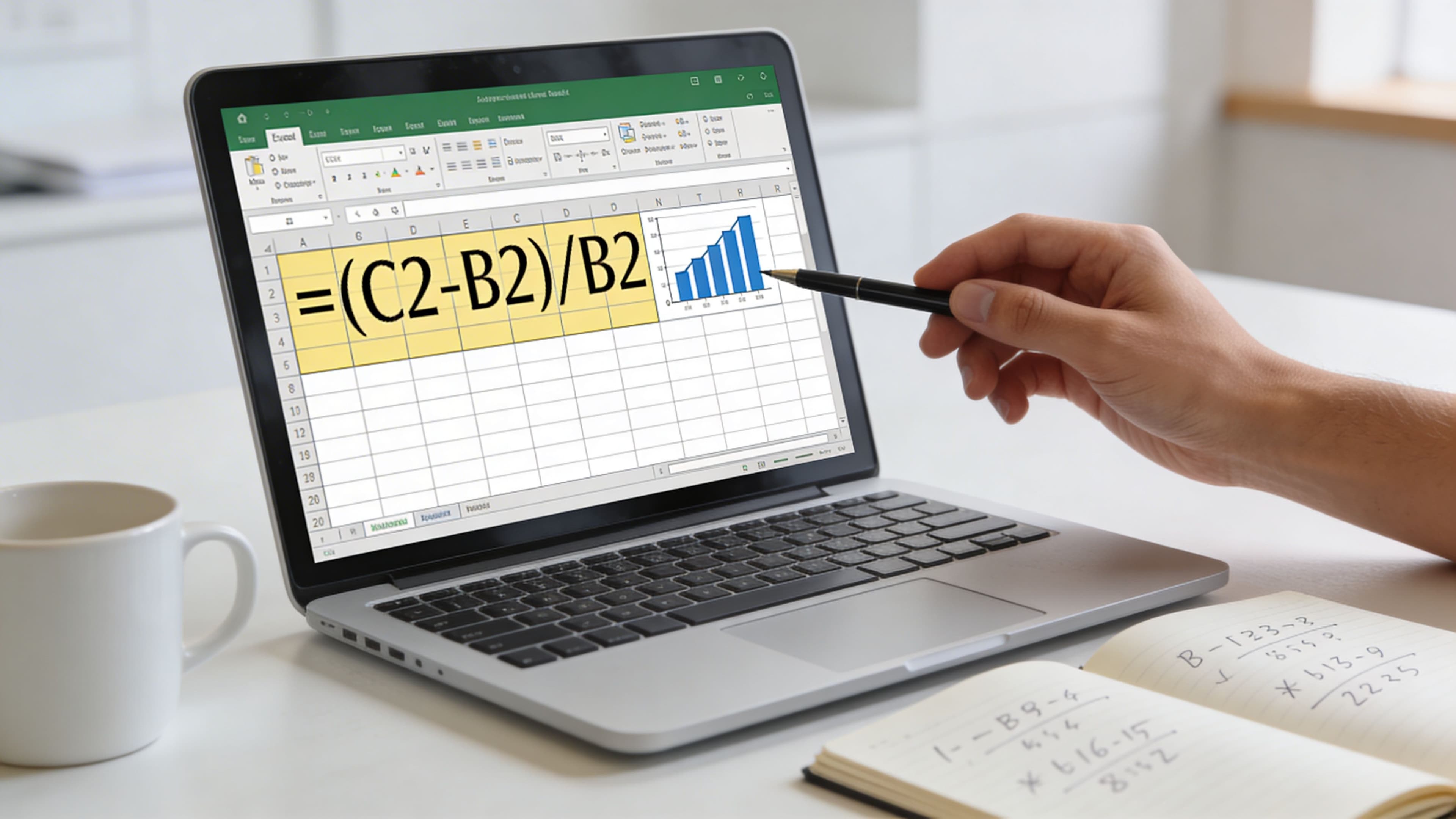
If you’re staring at a month-end workbook with last month’s revenue in one column, this month’s revenue in the next, and a messy exchange-rate tab sitting off to the side, you’re in the right place. This is when someone asks a deceptively simple question: “Can you show the percentage change?”
In practice, that question sits behind margin reporting, FX exposure checks, board packs, and management commentary. If you’re working in a South African business, especially one dealing with export revenue or overseas suppliers, the difference between a clean percentage calculation and a sloppy one shows up. A small formula mistake can distort your view of sales growth, currency movement, or payment costs.
The good news is that Excel handles this once you know which percentage formula fits the job. The bad news is that many people use one formula for everything, and that’s where reporting starts to go wrong.
Why Mastering Percentage Difference Matters for Your Business
Quarter-end reporting exposes weak spreadsheet habits.
A finance lead might know revenue increased, but struggle to answer the follow-up questions that matter. Was the growth strong enough to offset currency pressure? Did payment costs rise because volumes increased, or because the rand moved? Did the team improve performance, or did exchange-rate noise make the result look better than it was?
Where percentage calculations become business decisions
In a South African business, percentage change isn’t an academic Excel exercise. It sits inside daily finance work:
- Revenue reporting: Month-on-month or year-on-year growth needs a consistent baseline.
- FX monitoring: ZAR/USD moves affect import costs, export conversions, and cash planning.
- Variance analysis: Operations teams need to explain why actuals differ from budget or prior period.
- Management reporting: Executives want a percentage they can trust, not a decimal copied from a rushed formula.
A junior analyst often starts with the right instinct and the wrong method. They compare two numbers, divide by the newer one, and think they’re done. That can work in some cases, but not in others. The result may look neat in a board pack while being conceptually wrong.
Practical rule: Always decide what question you’re answering before you write the formula. Are you measuring directional growth, or neutral difference?
What good spreadsheet work looks like
Strong finance teams don’t only calculate percentages. They define them properly.
For revenue, you want a directional change from an old value to a new value. For exchange-rate volatility, a neutral comparison often works better because the purpose is to measure movement, not “growth” in the usual sense.
That distinction matters when you’re analysing fast-moving values across ZAR and USD accounts. It also matters when you need a workbook that another analyst can audit without guessing what your formula was trying to say.
The Fundamental Formula for Percentage Change
The standard answer to how to calculate difference percentage in excel starts with one formula:
=((new_value - old_value) / old_value) * 100
In Excel terms, if the old value is in B2 and the new value is in C2, use:
=((C2-B2)/B2)*100

This is the formula you use when you want to know how much something changed relative to where it started. That’s the right approach for revenue, costs, units sold, or almost any business metric with a clear starting point.
A revenue example you can use immediately
Say your business recorded an old USD revenue equivalent of 1,200,000 in B2 and a new value of 1,350,000 in C2. Enter this in D2:
=((C2-B2)/B2)*100
The result is 12.5%. That exact example is cited in this overview of the difference formula in Excel.
For South African export businesses, that same source notes that this asymmetric percentage change method is widely adopted in SA SME fintech tools, and significantly reduces errors compared to manual calculation methods after training.
Why Excel sometimes shows a decimal first
If you leave off *100, Excel will return a decimal that represents the same result. That isn’t wrong. It’s formatting.
If you prefer a cleaner worksheet, use:
=(C2-B2)/B2
Then format the result cell as a percentage from the Home tab, or use Ctrl+Shift+%.
If your team is still getting comfortable with formula structure, a simple refresher on how to make a formula in Excel can help before you build larger reporting sheets.
Label the outcome clearly
When you’re preparing commentary for management, it helps to add a label instead of leaving the percentage on its own. You can do that with logic around the result.
For example:
=IF((C2-B2)/B2>0,"Increase",IF((C2-B2)/B2<0,"Decrease","No Change"))
That gives the number context. A positive result means growth. A negative result means decline.
A quick walkthrough makes the mechanics easier to visualise:
What works and what doesn’t
| Approach | Works well for | Weakness |
|---|---|---|
(New-Old)/Old |
Revenue growth, cost changes, operational KPIs | Breaks if old value is zero |
Adding *100 in the formula |
Makes the result explicit | Can create confusion if someone also reformats badly later |
| Percentage formatting only | Cleaner workbook design | Junior users may misread the decimal before formatting |
The practical point is simple. If your number has a clear baseline, this is the right formula.
Handling Advanced Scenarios and Common Errors
Most spreadsheet errors don’t come from complex finance logic. They come from ordinary data that isn’t clean enough for a neat textbook formula.
Blank cells, zero baselines, copied formulas, and volatile rates cause far more trouble than the arithmetic itself.

When the old value is zero
The classic formula divides by the old value. If that cell is zero, Excel returns #DIV/0!.
The cleanest fix is:
=IF(B2=0,0,((C2-B2)/B2)*100)
That approach is specifically recommended in the verified guidance for asymmetric percentage change, as Div/0 errors frequently occur on nil baselines.
You can also return text instead of zero if that suits the report better:
=IF(B2=0,"N/A",((C2-B2)/B2)*100)
Use text when the absence of a valid baseline should be obvious to anyone reviewing the workbook.
When you need a neutral comparison
Exchange rates are different from revenue. Sometimes you don’t want to imply “increase” or “decrease” in the same business sense. You want a neutral measure of movement.
For that, use the symmetric formula:
=ABS((new_rate - old_rate) / AVERAGE(old_rate, new_rate)) * 100
If B2 = 18.50 and C2 = 19.20, then:
=ABS((C2-B2)/AVERAGE(B2,C2))*100
This yields 3.74%. The formula is cited in this guide on calculating percentage difference in Excel.
That same verified dataset notes this method is important for tracking ZAR-USD exchange rate fluctuations, with automated dashboards using it demonstrating improved success rates and reducing manual errors compared with calculator methods.
Use the symmetric formula when direction is less important than magnitude. That’s common in FX volatility checks.
Common mistakes I see in finance workbooks
Some errors keep turning up because they don’t look dramatic. The formula still returns a number, not the right one.
- Missing ABS(): In the data examined, overlooking
ABS()caused frequent directional misreads in BPO forex reports. - Weak denominator control: Zero or negative denominator issues frequently lead to errors in JSE trader audits.
- Bad copied references: Relative references frequently lead to pitfalls when formulas are dragged without checking the cell logic, as highlighted in SAICA Excel training.
A safer version for rate comparisons is:
=IF(OR(B2=0,C2=0),"N/A",ABS((C2-B2)/AVERAGE(B2,C2))*100)
The gap most basic tutorials ignore
Multi-currency reconciliation adds another layer. The issue isn’t only calculating one percentage correctly. It’s doing it across ZAR and USD accounts while flagging unusual movements and tying them back to payment workflows.
Understanding this is important because dynamic percentage change for multi-currency reconciliation is an underserved need. Basic guides rarely address conditional logic, variance thresholds, or the kind of cross-border payment tracking CFOs need.
Real-World Examples for South African Businesses
The formulas make more sense once they’re tied to work you’d do on a finance team. Two situations come up. One is exchange-rate tracking. The other is reporting on revenue growth.
Tracking ZAR and USD movement in a live workbook
A finance team receiving or paying across currencies usually keeps a rate table with daily values. One row per day. One column for the prior rate, one for the current rate, and one for the calculated movement.
If your old rate is in B2 and the new rate is in C2, the neutral comparison is:
=ABS((C2-B2)/AVERAGE(B2,C2))*100
That’s useful when you want to monitor volatility without framing it as “good” or “bad” too early. It’s especially useful in dashboards reviewed by non-finance managers, because the number speaks to movement rather than interpretation.

A practical weekly FX process
A simple workflow looks like this:
- Load the rates: Enter historical spot rates into adjacent columns.
- Apply the symmetric formula: Put the calculation in the next column.
- Format as percentage: Keep two decimal places so the report reads cleanly.
- Copy down the sheet: Extend the formula across the date range.
- Flag exceptions: Use conditional formatting to highlight movements above your internal tolerance.
That exact methodology is supported by the verified dataset using B2 = 18.50 and C2 = 19.20, producing 3.74%. The same data notes that traditional banks can apply significant hidden spreads, which is why rate comparison isn’t a cosmetic exercise.
Working habit: Keep the raw rates untouched in one area of the sheet and perform all percentage calculations in separate columns. Audits go faster that way.
The same verified source also notes that integrating live rate pulls through Power Query can boost accuracy and cut reconciliation time for export CFOs handling supplier invoices.
Reporting on monthly revenue growth
Revenue analysis needs directional change, not neutral difference.
Use the standard formula when comparing one month with the previous month:
=((C2-B2)/B2)*100
This gives a straightforward growth or decline figure relative to the old period. If you’re reporting monthly recurring revenue, export receipts, or sales by product line, this is the metric executives expect to see.
A strong reporting layout often includes:
- The raw value columns: Prior month and current month.
- The percentage change column: Calculated and formatted properly.
- A comment column: Short explanation for unusual swings.
- Conditional formatting: Green for increases, red for declines.
Comparing scenarios in one view
| Scenario | Better formula | Why |
|---|---|---|
| Month-on-month revenue | ((New-Old)/Old)*100 |
Baseline matters |
| Exchange-rate movement | ABS((New-Old)/AVERAGE(Old,New))*100 |
Neutral movement is more useful |
| Reconciliation exception check | Formula plus IF logic |
You need alerts, not just values |
A key advantage isn’t the formula by itself. It’s knowing when one percentage explains performance and when another measures movement.
Pro Tips for Fast and Accurate Bulk Calculations
A single cell formula is easy. Real workbooks rarely stop at one row.
Once you’re calculating percentages across transaction logs, monthly exports, or rate histories, speed matters. So does consistency.

Use the fill handle properly
After entering the formula once, grab the small square at the bottom-right of the selected cell and drag down. Excel copies the formula through the range.
This sounds basic, but it’s where many teams save the most time. It also reduces inconsistency because every row follows the same formula pattern.
Know when to lock a reference
Relative references change as you drag. Absolute references stay fixed.
If you need every row to compare against one target cell, lock it like this:
=(C2-$B$2)/$B$2
That keeps B2 fixed even when the formula moves down the sheet.
Data shows that relative references can fail in copied ranges, which is why reference control isn’t an advanced trick. It’s routine spreadsheet hygiene.
Build your calculation on clean imported data
Percentage formulas fail quickly when imported statements are messy. Dates arrive as text, amounts carry odd spacing, and debit-credit columns don’t line up with your workbook logic.
If your data starts in bank exports, this guide to converting bank statements to Excel is worth reviewing before you build formulas on top of unreliable inputs.
Use formatting as a control mechanism
Formatting isn’t decoration. It’s a control tool.
- Percentage format: Stops decimals from being misread in packs and emails.
- Conditional formatting: Surfaces outliers immediately.
- Consistent decimal places: Keeps management reports readable.
- Text labels with formulas: Reduces ambiguity for non-technical reviewers.
A workbook that calculates correctly but reads poorly still causes mistakes. Finance teams often lose time not because Excel can’t do the maths, but because someone misinterprets what the result means.
Turning Data into Decisions
Knowing how to calculate difference percentage in excel gives you more than a neat formula. It gives you a reliable way to explain movement.
Use the standard percentage change formula when you’re measuring growth from a defined baseline. Use the symmetric percentage difference when you’re analysing volatile figures such as exchange rates. Add IF logic when the data isn’t clean enough to trust a raw formula on its own.
That’s the discipline good analysts apply every day. They don’t only ask whether the spreadsheet returns a number. They ask whether the number answers the right business question.
For South African businesses balancing local operations with global payments, that distinction matters. A clean workbook helps you report performance properly, defend your assumptions, and spot issues before they become expensive.
If your team wants clearer visibility into cross-border payments, FX movements, and the true cost of moving money internationally, Zaro is built for South African businesses that need transparent rates, better control, and a cleaner way to manage ZAR and USD payment workflows.