
If you're handling money in South Africa, you'll constantly be switching between cents and rands. Thankfully, the maths is incredibly simple. The only formula you'll ever need is this: Rands = Cents / 100.
That’s it. Since there are always 100 cents in one South African Rand (ZAR), this little division sum is your key to accurate financial records. It’s the bedrock of everything from pricing products to running payroll.
The Core Conversion Formula Everyone Should Know
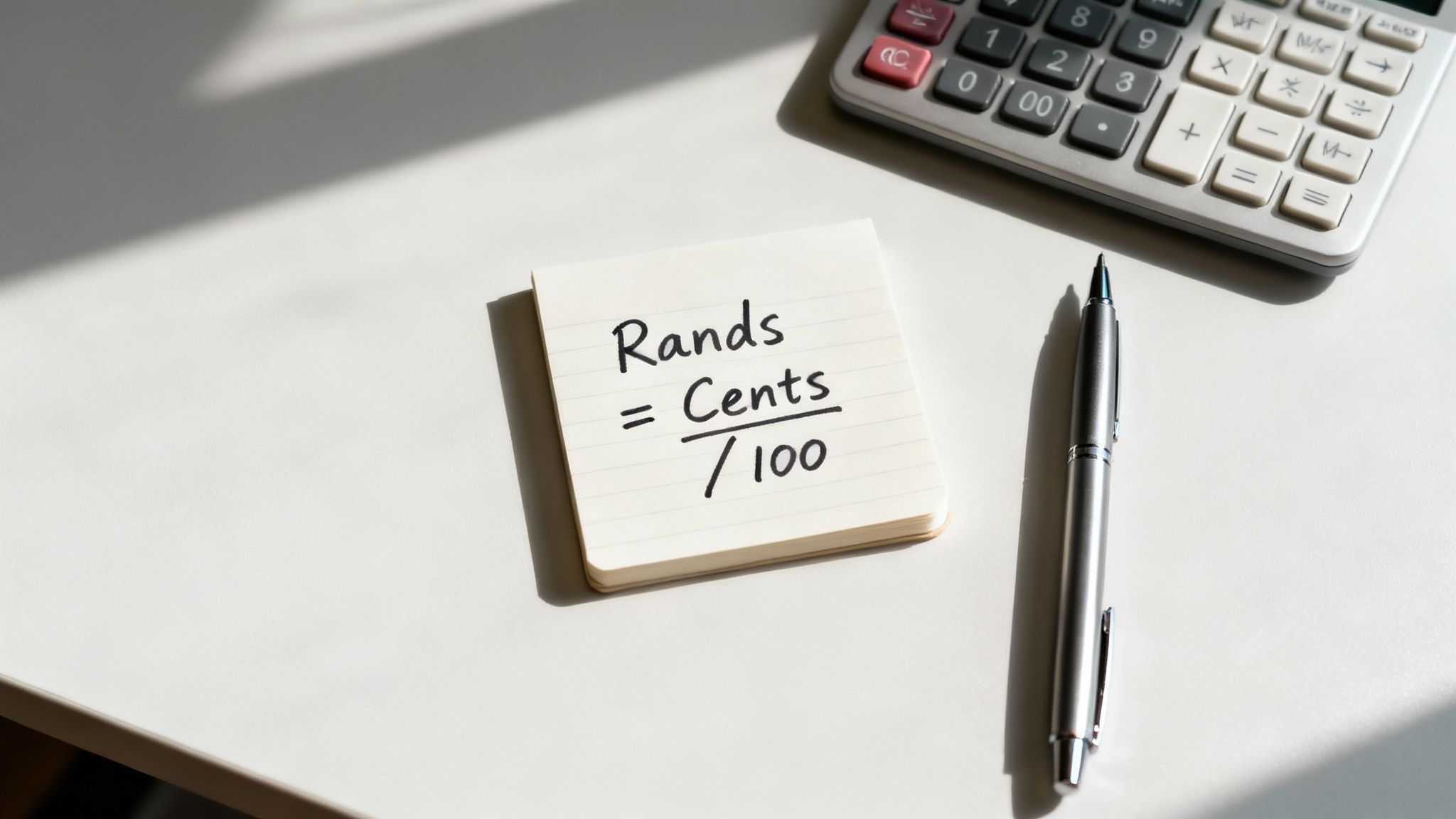
The relationship between rands and cents never changes, which makes this conversion completely reliable. Whether you're doing a quick calculation in your head or building a complex spreadsheet, that simple division is all you need. For any business, getting this right every single time isn't just good practice—it's essential.
Why This Simple Math Matters So Much
In business, precision is everything. It builds trust with customers and prevents small mistakes from snowballing into big financial headaches. Think about it: a tiny error on a large batch of invoices or a company-wide payroll run can quickly add up to a significant shortfall.
This is especially true for South African businesses that work with international clients. Currency markets can be volatile. For example, in one 12-month period, the rand weakened by over 11.76% against the US dollar. During times like these, meticulous internal accounting is non-negotiable.
An incoming payment of $1,000 might convert to 1,618,060 cents. You absolutely have to record that as R16,180.60 on the dot to keep your books clean and your financial reporting accurate. If you're interested in tracking these kinds of trends, platforms like Trading Economics offer detailed historical data.
Key Takeaway: The formula
Rands = Cents / 100is more than just a quick calculation. It’s a core principle for maintaining financial integrity and running an efficient business in the South African economy.
To give you a practical feel for this, here's a quick-reference table showing how the formula works with some common values you might encounter in your day-to-day operations.
Quick Cents to Rands Conversion Chart
| Cents Value | Calculation (Cents / 100) | Result in Rands (ZAR) |
|---|---|---|
| 500 cents | 500 / 100 | R5.00 |
| 2,500 cents | 2,500 / 100 | R25.00 |
| 10,000 cents | 10,000 / 100 | R100.00 |
| 150,750 cents | 150,750 / 100 | R1,507.50 |
As you can see, it's a straightforward process. The key is to apply it consistently across all your financial activities.
Putting the Formula to Work in Your Business

Knowing the theory is one thing, but let's look at how this plays out in the daily grind of a South African business. This is where the simple act of dividing by 100 becomes a crucial step for maintaining accurate financial records.
Imagine your accounts department receives a supplier invoice for a large stock order. The total is listed as 125,550 cents. To get that into a format ready for your accounting software or bank payment, you just run the numbers: 125,550 / 100 = R1,255.50. It's a quick, clean calculation that leaves no room for error.
The same goes for payroll. If a freelancer submits a timesheet totalling 89,700 cents for a project, a quick conversion shows their pay is exactly R897.00. This simple check ensures everyone is paid correctly, which helps prevent those small, frustrating accounting discrepancies that can build up over time.
What About Going from Rands to Cents?
Sometimes, you need to work backwards. This is especially common when dealing with payment gateways or software systems that require money to be handled as whole numbers (integers) to avoid rounding issues. In tech circles, this is standard practice to prevent what are known as "floating-point errors."
To do this, you just multiply the rand amount by 100.
- An item priced at R45.75 would be entered into the system as
45.75 * 100 = 4,575 cents. - A large payment of R1,200.00 becomes
1200 * 100 = 120,000 cents.
Getting this reverse conversion right is absolutely vital for data integrity, especially in e-commerce or financial applications.
Expert Tip: In our experience, it's best practice to use cents as your "single source of truth" in any backend database or system. Store and calculate everything in cents. Only convert the final figure to rands when you need to display it on a customer-facing invoice, a report, or on your website. This simple discipline will save you from a world of headaches caused by cumulative rounding errors.
Of course, you won't always be doing this by hand. Modern financial tools often handle these conversions behind the scenes. For example, the smartreceipts platform helps businesses manage their financial data, and accurate ZAR handling is a core part of how it functions.
Whether you're using a dedicated tool or a simple spreadsheet, a solid grasp of these conversions is fundamental to good financial management.
Getting Spreadsheets to Do the Work for You
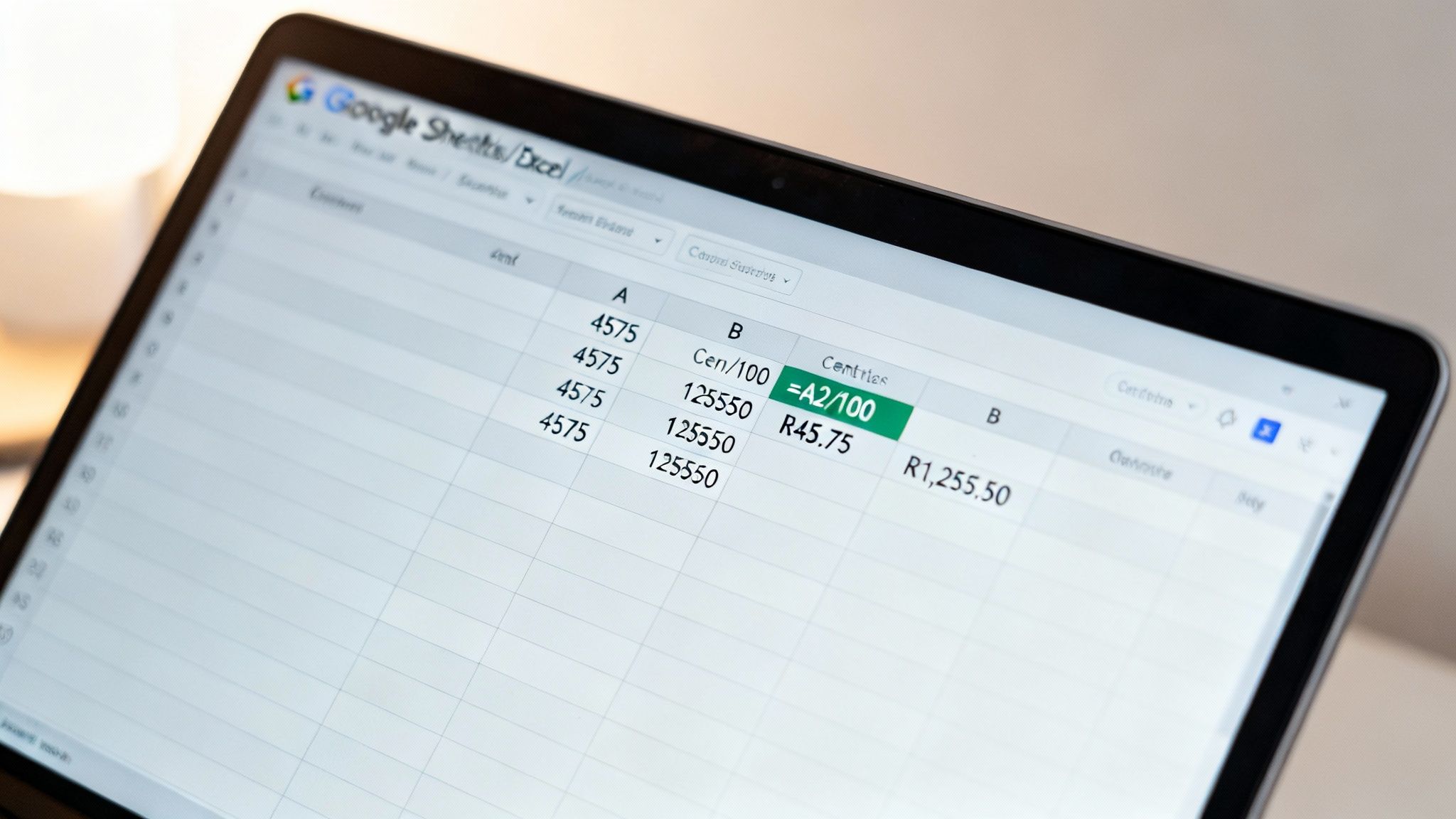
If you're dealing with long lists of transactions, converting them one by one is a recipe for mistakes and wasted time. For anyone working in finance or business administration, knowing how to automate this in a spreadsheet isn't just a handy trick—it's essential. Thankfully, it's dead simple in both Microsoft Excel and Google Sheets.
Let's say you have a column full of cent values, starting in cell A2. Just click on the cell next to it (B2) and type in the formula: =A2/100.
Hit Enter, and you’ll see the rand value instantly. The best part? Grab the little square at the bottom-right corner of that cell and drag it down the column. The formula will automatically apply to all your rows, converting everything in seconds.
Making Your Spreadsheet Data Look Professional
Getting the right numbers is just the start. For financial reports that look clean and are easy to understand, you need to handle your formatting and rounding correctly. A messy spreadsheet can cause confusion and even lead to small, but significant, inaccuracies.
After you've applied the formula, here are a couple of quick refinements to make your data truly professional:
- Format as Currency: Highlight the column with your new rand values. Look for the currency formatting option in the toolbar (it usually looks like a currency symbol) and choose ZAR (South African Rand). This automatically adds the "R" prefix and sets the value to two decimal places, which is exactly what you need.
- Use ROUND() to Avoid Glitches: Sometimes, computers create tiny, almost invisible decimal errors when they do maths. To make sure your figures are always spot-on, it’s a good idea to wrap your formula in the
ROUND()function. Your formula will now look like this:=ROUND(A2/100, 2). This tells the spreadsheet to round the result to precisely two decimal places, which is standard practice for ZAR and prevents any weird floating-point issues.
A Quick Tip from Experience: When you're working with huge datasets, set up data validation on the column where you input the cents. You can set a rule that only allows whole numbers (integers). This stops anyone from accidentally entering something like "150.5" cents, which can throw off your entire report and send you on a wild goose chase looking for the error.
Weaving the Conversion Into Your Code

If you're running a custom e-commerce site, a bespoke accounting system, or any financial app in South Africa, you'll need to build this conversion right into your code. Let's be honest, manual conversions just don't cut it when you need speed and precision at scale.
Here’s a look at how to handle this in a couple of the most popular programming languages.
In Python, you can wrap the logic in a simple, reusable function. This keeps your main code clean and ensures every conversion is handled the exact same way, every single time.
def cents_to_rands(cents):
"""Converts an integer cent value to a ZAR rand value."""
return cents / 100
Here's how you'd use it:
invoice_total_cents = 15750
invoice_total_rands = cents_to_rands(invoice_total_cents)
print(f"The total is R{invoice_total_rands:.2f}") # Outputs: The total is R157.50
The logic is virtually identical in JavaScript, which is crucial for any web-based application that needs to show prices to customers. A quick function like this can take a cent value straight from your database and format it perfectly for the user.
function centsToRands(cents) {
// Converts an integer cent value to a ZAR rand value.
return cents / 100;
}
// And in action:
const productPriceCents = 4999;
const productPriceRands = centsToRands(productPriceCents);
console.log(Price: R${productPriceRands.toFixed(2)}); // Outputs: Price: R49.99
The Golden Rule of Financial Programming
These functions look simple, but they touch on a massive "gotcha" in software development: floating-point precision errors. These are tiny, almost invisible inaccuracies that can creep in when computers handle decimal numbers. Over thousands of transactions, these small errors can lead to some serious accounting headaches.
Industry Best Practice: Always, always perform financial calculations using integers (in this case, cents). Store all your monetary values as cents in the database. Only convert to rands at the very last step—right when you need to display the final price to a user or print it on a report.
This simple discipline completely sidesteps any floating-point issues, guaranteeing your system's calculations are 100% accurate. It’s a foundational rule for building any software that handles money and will save you from chasing down rounding errors later.
Common Conversion Mistakes and How to Avoid Them
It's easy to dismiss a misplaced decimal as a minor slip-up, but in the world of finance, that tiny dot can cause massive headaches. Even with a straightforward formula for converting cents to rands, a few common mistakes can easily lead to invoicing errors and reconciliation nightmares.
One of the most frequent blunders I see is accidentally dividing by 10 or 1,000 instead of the correct 100. When you're working quickly, it's all too easy to hit the wrong key. Suddenly, 50,000 cents (R500) becomes R5,000 or, just as bad, R50. That single mistake can throw an entire financial report out of whack.
Inconsistent Rounding and Formatting
Another sneaky problem is inconsistent rounding. If one person on your team rounds up from half a cent and another rounds down, those tiny fractions start to add up over thousands of transactions. It might not seem like much at first, but this is exactly how you end up with books that are impossible to balance at month-end.
Poor data formatting creates similar chaos. One software system might interpret "R 1,250.50" differently from "R1250.50", causing import errors or calculation failures. Agreeing on a single, company-wide format for currency is non-negotiable for maintaining clean data.
A Quick Sanity Check:
Here are a few house rules we live by to keep our numbers clean and prevent these common slip-ups.
- Double-check your formulas: Every single time you set up a new spreadsheet, make sure your division is by 100. No exceptions.
- Use data validation: In Excel or Google Sheets, you can set rules to ensure your "cents" column only accepts whole numbers. This stops typos at the source.
- Standardise your currency format: Pick one format (e.g., R1,250.50) and make it the rule for everyone, everywhere.
These specific conversion errors are one part of a bigger picture. Getting a handle on other common accounting mistakes is a smart move for protecting your company's financial health. At the end of the day, a disciplined and consistent approach is your best defence against costly errors.
Common Questions on Converting Cents to Rands
When you're dealing with ZAR conversions day in and day out, a few questions always pop up. It's one thing to know the formula, but applying it correctly in financial documents is where the real work begins.
Getting these details right isn’t just about the maths; it’s about making sure every invoice, report, and spreadsheet is clear, consistent, and professional. Let's tackle some of the most common sticking points.
How Should I Handle Rounding?
In South Africa, standard practice is to round everything to two decimal places. If your calculation leaves you with a fraction of a cent, you simply round to the nearest whole cent. It's a straightforward rule that keeps things tidy.
For example, a calculation that gives you R12.345 should be rounded up to R12.35. On the flip side, R12.344 gets rounded down to R12.34.
Most accounting software and spreadsheet functions (like
=ROUND()in Excel or Google Sheets) can handle this for you automatically. The trick is to ensure your systems are set up to apply this rule consistently. That way, you avoid those tiny discrepancies that can add up over thousands of transactions.
What’s the Best Way to Format Rands and Cents?
For absolute clarity, you can't go wrong with the standard decimal format: the "R" symbol followed by the amount, like R1,250.75. This is the format everyone in finance understands instantly, and it plays nicely with all financial software, which helps minimise any chance of a mistake.
It’s best to avoid writing amounts out in words (like "1250 rands and 75 cents") on official documents. Sticking to one format across all your business communications looks far more professional and keeps everything accurate.
Can the Formula Be Used for Negative Values?
Yes, absolutely. The Cents / 100 formula works just as well for negative numbers. This is a must for proper accounting, especially when you're dealing with credits, refunds, or tracking expenses.
So, if your business needs to issue a refund of -5000 cents, the calculation is just as simple:-5000 / 100 = -R50.00
Your financial system will correctly see this as a credit or debit, depending on the context. You can apply the how to convert cents to rands formula with confidence, no matter if the number is positive or negative.
For South African businesses managing international payments, converting currencies accurately is just the first step. With Zaro, you can send and receive global payments using real exchange rates with no hidden fees, ensuring your financial operations are as efficient and transparent as possible. Learn how Zaro simplifies cross-border finance.