
Getting MetaTrader 4 onto your PC is a pretty straightforward affair. The whole process is designed to get you from zero to trading in just a few minutes. You'll simply need to grab the installer file from a reliable source—usually your forex broker or the official MetaQuotes website—and then run the installation wizard. Once that's done, you just need to connect it to your trading account, and you're good to go.
Why MT4 Is Still a Trader’s Top Pick
Before we get into the nitty-gritty of the download, it’s worth taking a moment to understand why MT4 is still the go-to platform for so many traders, particularly here in South Africa. Its staying power isn't just a case of old habits dying hard; it comes down to a potent mix of powerful features and genuine accessibility. For anyone focused on Forex and CFDs, MT4 provides a rock-solid and efficient environment to trade from.
What really keeps people coming back is its serious analytical muscle. The platform lets you conduct incredibly detailed technical analysis right on the charts. This is backed by a huge, active community that’s always creating and sharing custom indicators and automated trading scripts, so you’re never short on tools.
What Makes the MT4 Platform Stand Out?
The real magic of MT4 lies in its customisation and automation. You're not stuck with the out-of-the-box tools. Instead, you can build your own Expert Advisors (EAs) or download them from the community to automate your trading strategies completely. This has fostered a massive, vibrant ecosystem that revolves around the platform.
Here’s a quick rundown of why traders are so loyal to MT4:
- Top-Notch Charting Tools: It comes loaded with a comprehensive suite of built-in analytical objects and technical indicators.
- Expert Advisors (EAs): You can put your trading on autopilot, which helps take emotion out of the equation and allows for 24/7 execution.
- Highly Customisable: The interface, charts, and tools can all be tweaked to perfectly match your personal trading style.
Launched way back on 1 July 2005, MT4 didn't take long to become the global benchmark, and it quickly found a strong following in South Africa. Its popularity in the ZA region is also helped by handy features like multiple chart windows and a multilingual interface, which is great for our country's diverse trading community.
To help you get a bird's-eye view, here's a quick summary of the steps we'll be covering.
Quick Overview of the MT4 Installation Process
| Phase | What You'll Do | End Result |
|---|---|---|
| Download | Visit your broker's website or the official MetaQuotes site to get the installation file. | You'll have the mt4setup.exe file saved on your computer. |
| Installation | Run the setup file and follow the on-screen instructions from the installation wizard. | The MetaTrader 4 platform will be installed and ready to launch. |
| Account Setup | Open the platform and log in using your existing demo or live account credentials. | Your account is connected, and you can see live market data. |
Following these phases will get you set up and ready to analyse the markets in no time.
For anyone who gets the trading bug and starts thinking about the future of financial markets, it's worth checking out potential career paths like these high-paying crypto trader jobs.
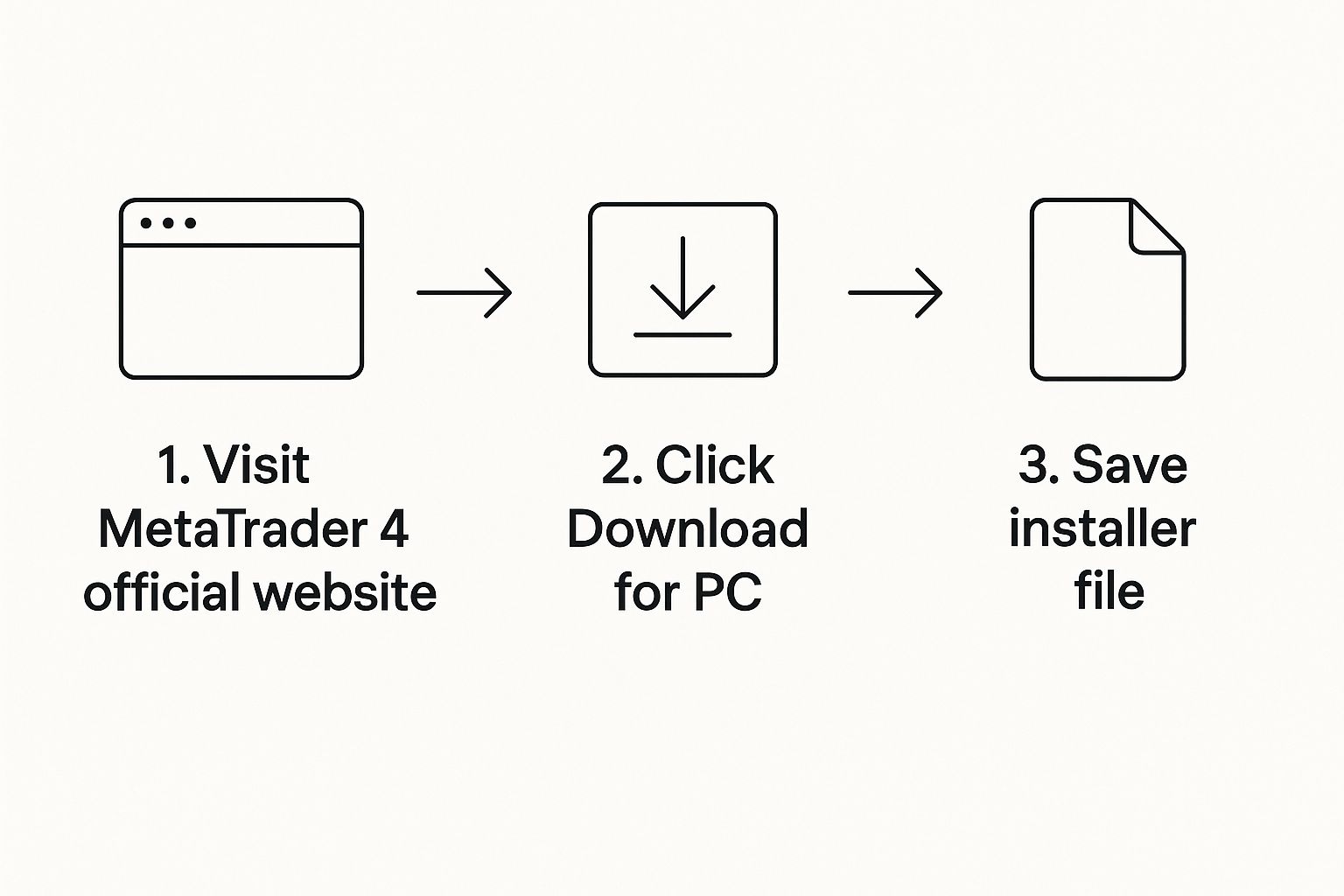
Right, so you’re ready to get MetaTrader 4 running on your Windows PC. The very first thing you need to sort out is where you're going to download the installer from. This might seem trivial, but getting it wrong can cause headaches later, from security risks to setup hassles.
Your best bet is to stick to official sources. I can't stress this enough. Dodgy third-party websites are notorious for bundling malware or other unwanted junk with popular software. The last thing you want is a compromised trading setup.
It's also a good idea to be generally aware of threats like malware disguised as legitimate software. Knowing how to prevent the Trojan Horse virus is a smart move that adds an extra layer of protection to your entire system, not just your trading.
Your Broker Is the Easiest Route
Honestly, for most traders, the simplest path is to grab the MT4 installer directly from your forex broker's website.
The big win here is convenience. Brokers almost always provide a version of MT4 that's pre-configured with their server details already plugged in. This saves you the slightly fiddly task of hunting for server names and IP addresses when you first log in. For anyone new to the platform, this is a massive help.
Plus, when you download from a regulated, well-known broker, you know you're getting the real deal, optimised for their systems. This ensures a smooth connection and that you’ll see all their specific trading instruments right away.
My Two Cents: Grabbing the download from your broker just makes life easier. It streamlines the setup so you can get from installation to logging in without having to manually configure server connections.
The Official MetaQuotes Website
What if you don't have a broker yet, or you just prefer a completely clean slate? No problem. You can always go straight to the source: the official MetaQuotes website.
MetaQuotes are the developers behind MT4, so downloading from them guarantees you're getting a 100% clean, "vanilla" version of the platform.
Just keep in mind that this version won't be linked to any specific broker. Once you've installed it and chosen a broker, you'll need to find and select their server from a list inside the platform. It's an extra step, but a straightforward one.
For traders in South Africa, many local brokers go the extra mile to make this process painless. For example, providers like IFC Markets often have simple, step-by-step guides to get you up and running in minutes. They really tailor the experience to help you start trading as quickly as possible.
Getting MT4 Installed on Your Windows PC
Right, so you've downloaded the installer file. The good news is you're past the first hurdle and just a few clicks away from getting MetaTrader 4 up and running. The rest of the process is guided by a simple setup wizard, much like any other program you'd install on your computer.
It's designed to be a piece of cake, but I'll walk you through exactly what to expect so you can breeze through it with confidence.
Kicking Off the Setup Wizard
First things first, find that downloaded file. It’s usually in your 'Downloads' folder and will be named something like mt4setup.exe. Give it a double-click to get started.
You'll immediately see a Windows security pop-up, the User Account Control, asking if you want to allow the app to make changes. This is perfectly normal. Just click "Yes" to continue.
The real installation wizard will then appear, starting with the MetaQuotes Software Corp. License Agreement. It’s always smart to have a quick scan through the terms before you hit "Next".
Picking an Installation Spot (Or Sticking with the Default)
The wizard will then ask where you want to install the platform. By default, it suggests a standard location in your Program Files folder, which is absolutely fine for 99% of traders.
If you're an advanced user who plans on running multiple MT4 terminals for different brokers, you might want to specify a custom folder for each one to keep things organised. But for most people, the default path is the way to go.
My Advice: If this is your first time installing MT4, just stick with the default location. It’s the simplest and most reliable choice, and there’s really no compelling reason to change it.
Once you’ve confirmed the path, the wizard takes over and starts copying all the necessary files onto your PC. This part is fully automatic and pretty quick – usually done in under a minute. You'll just see a progress bar ticking along.
Finishing Up and Launching the Platform
The final screen will pop up with a big "Finish" button. You'll usually see a pre-ticked box to launch MetaTrader 4 as soon as you close the wizard. I'd recommend leaving this checked. It’s also handy to make sure a desktop shortcut has been created so you can easily access the platform later.
Click "Finish", and that's it! The MT4 platform will fire up for the first time, ready for you to log in with your trading account details. The whole process, from start to finish, is quick, painless, and gets you ready to trade in no time.
Getting Your Trading Account Hooked Up to MT4
Alright, so you've got the MetaTrader 4 platform installed on your PC. Right now, it's a powerful tool just sitting there, waiting for instructions. The next crucial step is to bring it to life by plugging in your broker's trading account. This is where the magic happens—your terminal syncs up with live market data, and you’re ready to trade.
The process is basically the same whether you're starting with a demo account to practise or diving straight in with a live account. You'll just need the specific login details your broker sent you when you first signed up.
Finding Your Login Details
When you registered with your broker, they would have sent you a critically important welcome email. Seriously, find that email. It contains the three pieces of information you absolutely need to get into MT4:
- Your Account Number: This is your unique ID for that specific trading account.
- Your Main Password: The password that gives you full control to place and manage trades.
- The Server Name: This tells MT4 exactly where to connect. It will look something like "BrokerName-Live01" or "BrokerName-Demo".
Keep that email somewhere safe. Trying to guess the server from the dropdown list is a common cause of frustration and "Invalid account" errors. You must use the exact server name provided in the email.
Logging In to an Existing Account
Fire up your freshly installed MT4 platform. More often than not, a login window will greet you straight away. If it doesn’t, no worries. Just head to the top-left menu and click File > Login to Trade Account.
Now, grab that email from your broker and carefully enter the details into the login box. Pay close attention to your password—it's usually case-sensitive—and make sure you’ve selected the correct server from the dropdown list. Once you're confident everything is correct, hit the "Login" button.
Quick Tip: A classic beginner's mistake is using the "investor" password instead of your main trading password. The investor password only gives you read-only access, meaning you can watch the markets but can't place any trades. Always use your main password for full functionality.
You'll know you're in when you hear a little confirmation chime. The connection status in the bottom-right corner of the platform will also turn green, showing the data transfer speeds. That's it! You're now connected to your broker, receiving live prices, and officially ready to analyse the charts.
Making the MT4 Trading Workspace Your Own
When you first launch MetaTrader 4, it can feel a little... generic. A blank slate. The real power of the platform comes from shaping it to fit your personal trading strategy, so you can see exactly what you need, when you need it.
Let's start by getting your favourite charts on the screen. If you're keeping an eye on the local market, you’ll probably want the USD/ZAR pair front and centre. Just find it in the "Market Watch" window, give it a right-click, and select "Chart Window". Easy as that.
The chart that pops up will have a default look, but you’re not stuck with it. You can instantly toggle between Candlestick, Bar, and Line charts right from the main toolbar. Pick the one that helps you read the price action most clearly.
Getting Your Favourite Indicators on the Chart
Now for the fun part: adding your technical indicators. These are the tools that help you dissect market trends and spot potential trades. To add classics like Moving Averages or the Relative Strength Index (RSI), just head up to the main menu and navigate to Insert > Indicators.
This level of customisation is a huge reason MT4 has stayed on top for so long. In fact, many South African Forex brokers report that MT4 is used for over 70% of their clients' Forex and CFD trading. A big part of that is its arsenal of over 30 built-in indicators. You can get a feel for its popularity and features by checking out the MT4 reviews on the Google Play Store.
A Quick Tip from Experience: Try not to clutter your charts. It’s tempting to add every indicator you’ve ever heard of, but a clean workspace with just two or three essential tools is far more powerful. Too much information just leads to confusion.
Once you’ve got everything set up just right—your charts, colours, and indicators are all perfectly arranged—the most important step is to save it. Go to File > Profiles > Save As and give your new workspace a name you'll remember. This saves your entire layout as a profile, so you can load it in seconds next time. It’s a simple action that will make your trading sessions so much more efficient.
A Few Common Questions About the MT4 Download
Even with a straightforward guide, a few little things can crop up when you're getting set up. Let's walk through some of the questions I hear all the time so your installation is a breeze.
A lot of people worry about system requirements, but the good news is that MetaTrader 4 is famously light. You really don't need a beast of a machine; just about any modern Windows PC will run it perfectly well.
Is MT4 Free to Download?
Absolutely. The MetaTrader 4 platform is 100% free to download and install. Neither the developer, MetaQuotes, nor your chosen broker will ever charge you just to get the software onto your computer.
The only time money comes into it is when you begin to trade with a live account. That's when you'll encounter costs like spreads and commissions, which are part of your broker's fee structure. But for downloading, installing, and practising on a demo account, it won't cost you a cent.
The Bottom Line: The MT4 software is free. Costs are tied to live trading activities, not the platform itself. This is fantastic because it lets you get comfortable and test your strategies without any financial pressure.
What if I Can't Log In?
This is easily the most common snag new users hit after installation. If you see an error like "Invalid account" or "No connection," don't panic. It almost always comes down to one of three simple things:
- Incorrect Login Number: Go back to the email from your broker and double-check you've typed the account number correctly.
- Wrong Password: Passwords are case-sensitive. It's easy to make a small typo or have Caps Lock on by mistake.
- Wrong Server: Your broker will have assigned you a specific server, like "BrokerName-Live02" or "BrokerName-Demo01". You have to select the exact one from the dropdown list.
Honestly, running through these three details will solve the problem 99% of the time. It’s usually just a simple mix-up.
For South African businesses, navigating international payments can feel as tricky as the Forex market itself. Zaro makes it simple and affordable, allowing you to send and receive global payments at the real exchange rate without hidden fees. Learn more about how Zaro can improve your cross-border transactions.