Getting to grips with MetaTrader 5 is all about three things: downloading the software, setting up an account with a broker, and then linking that account to the platform. Once you’ve done that, you’re ready to start exploring the interface, digging into the charts, and executing trades with its seriously powerful built-in tools. Nailing this initial setup is your first real step into the global financial markets, right from your computer or phone.
Getting Started with MetaTrader 5 in South Africa
Jumping into a professional-grade platform like MetaTrader 5 can feel a bit overwhelming at first, but honestly, the setup is more straightforward than most people think. It’s the foundation for everything else you'll do, whether that's analysing the USD/ZAR pair or managing a complex automated strategy.
The whole process really just comes down to getting the software, opening an account, and connecting the two. This is also where you'll make some key decisions that will define your trading experience, like which device to use, what kind of account to open, and which broker to trust with your money.
Download and Installation Across Devices
First things first, you need to get the MT5 application. You can grab the official installation files directly from the MetaQuotes website, but it’s often easier to download it straight from your chosen broker’s portal. The good news is that MT5 is available for pretty much any device you use.
- Windows Desktop: This is the full-fat version. You get complete access to everything, including all the advanced analytics and automated trading tools (Expert Advisors).
- macOS: While there is a native version, many brokers still offer the Windows version that runs through a simple emulator like Wine. Don't worry, it works seamlessly for most traders.
- Mobile (iOS and Android): These aren't just scaled-down versions; they are powerful apps. You can genuinely manage your trades, analyse charts with indicators, and keep an eye on your account from anywhere with a signal.
The installation itself is just like any other program. Run the file you downloaded and follow the prompts. Once it's done, you'll see the platform's default layout, ready and waiting to be connected to your trading account.
This simple diagram lays out the core setup flow for any new user.
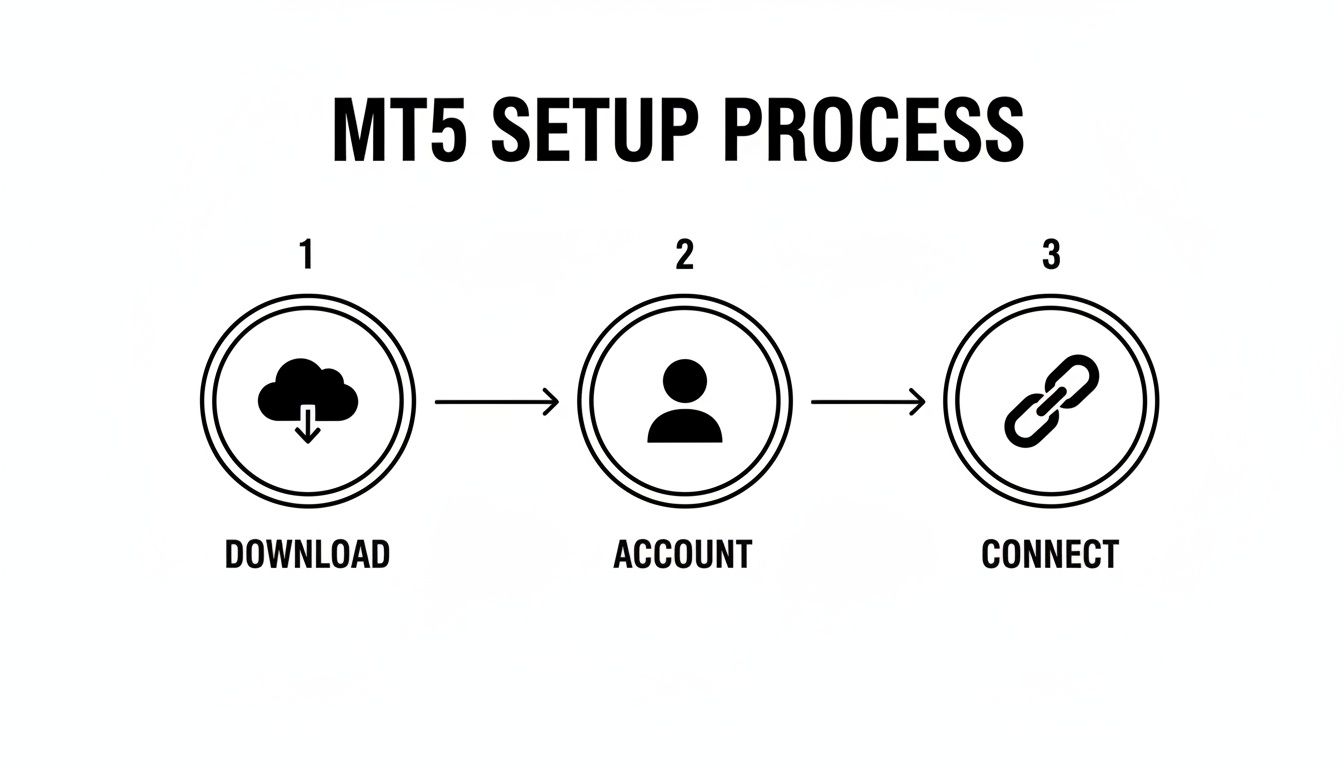
As you can see, the path to trading on MT5 starts with downloading the software. From there, you'll create your account and then, finally, connect it to your broker's server.
Choosing Your Account: Demo vs Live
Before you can connect to anything, you need a trading account. Brokers offer two main types, and each one has a very different job. Your first big decision is whether to start with a demo account or jump straight into a live one.
Deciding between a demo and a live account is a crucial first step. Here's a quick comparison to help you figure out where you should start your MT5 journey.
| Feature | Demo Account | Live Account |
|---|---|---|
| Capital | Virtual funds only | Real money is deposited and traded |
| Risk | Zero financial risk. Perfect for learning. | Real financial risk. Profits and losses are real. |
| Psychology | Low-stress environment to practise strategies. | High-pressure, involves real trading emotions. |
| Market Data | Real-time, but sometimes with slight delays. | Live, real-time data feed from the broker. |
| Best For | Beginners, testing EAs, practising new strategies. | Experienced traders, executing a tested strategy. |
For anyone new to trading, my advice is always the same: start with a demo account. Stay there until you’re consistently hitting your targets and you know the platform inside and out. There's simply no reason to risk real money while you're still learning the ropes.
Finding a Broker and Connecting Your Account
Your choice of broker is absolutely critical. For us here in South Africa, it's vital to pick a broker that is regulated by the Financial Sector Conduct Authority (FSCA). This isn't just a recommendation; it's your primary layer of protection, ensuring your funds are safe and the broker is held to strict local standards.
Once you’ve picked an FSCA-regulated broker and opened an account, they'll email you three crucial pieces of information:
- Your Login ID (this is just your account number)
- Your Password
- The Server Name
Armed with these details, head back into your MT5 platform. Go to "File" > "Login to Trade Account" and carefully enter everything exactly as provided. You’ll know you’ve done it right when the "No connection" status in the bottom-right corner of the platform flicks to a green icon showing data speeds. That’s it—you’re live and ready to trade.
The platform has seen huge growth locally, and as of now, MT5 supports around 250,000 active users in South Africa alone. You can find more information on how MT5 is changing the game for local investors on natachees.com.
Navigating the MT5 Interface with Confidence
Right, so you’ve opened MetaTrader 5 for the first time. It’s a lot to take in, isn’t it? Flashing numbers, charts all over the place, and a sea of buttons. It's completely normal to feel a bit overwhelmed, but don't let it put you off. Think of it as the cockpit of a plane – every dial and switch has a purpose, and once you know what they do, it all starts to make sense.
Our job here is to cut through that initial confusion. We're going to break down the main parts of the screen you'll be using every day. By the end of this, you'll see how to arrange everything to suit your own style, making your trading feel much more organised and intuitive.
The Four Pillars of Your Workspace
The standard MT5 layout is split into four main windows. Getting a handle on what each one does is the key to finding your feet on the platform. Let's do a quick tour of your new trading desk.
- Market Watch: This is your live price feed, usually parked on the top left. It’s a list of all the instruments you can trade – currency pairs like USD/ZAR, commodities, and so on – with their real-time bid and ask prices.
- Navigator: Tucked just underneath the Market Watch, this is your control panel for accounts and tools. You'll come here to flick between your demo and live accounts, drag indicators onto your charts, and manage any Expert Advisors (EAs) you're running.
- Chart Window: This is the big one, the main event right in the centre of your screen. It’s your canvas for technical analysis. You'll spend most of your time here, watching price movements, applying indicators, and drawing your trendlines.
- Toolbox: Running along the bottom, the Toolbox is your admin and operations hub. It has tabs where you can see your open trades, check your account history, read market news, and manage your pending orders. It's where you keep track of your performance.
These four windows work together to give you a full picture of the market and your own trading activity. Once you get the hang of how they interact, using MT5 will become second nature.
Customising Your Trading Environment
One of the best things about MT5 is that you're not stuck with the default layout. You can completely tailor it to how you trade. Feel free to drag, drop, resize, and even pop out windows onto a second monitor if you have one.
For instance, if you’re a day trader focusing on the Rand, you might want one huge USD/ZAR chart taking up most of the screen. But if you’re a South African business owner hedging your international payments, you might want smaller charts for EUR/ZAR and GBP/ZAR visible at all times. The trick is to play around with it until it feels right for your workflow.
Pro Tip: Once you’ve created a layout you really like, save it! Go to "File" > "Profiles" > "Save As..." and give it a memorable name like "My Forex Setup". This is a lifesaver because you can instantly load your custom workspace anytime, even if things get moved around by mistake.
This is especially handy if you trade different strategies. You could have one profile set up for hedging, with specific risk tools visible, and a completely different one for analysing JSE shares with a different set of indicators.
Practical Tips for a Smoother Workflow
Knowing what each window does is the first step, but using them efficiently is what makes the difference. Let's walk through a few common actions.
Need to add a new currency pair to your Market Watch? Just right-click anywhere in that window, choose "Symbols," find the instrument you're looking for (like AUD/ZAR), and give it a double-click. Done.
In the Navigator, you can add an indicator like a Moving Average in seconds. Simply find it in the "Indicators" list, then click and drag it straight onto the chart you want. A little box will pop up so you can tweak the settings before it appears.
You'll be spending a fair bit of time in the Toolbox, especially in the "History" tab where you can review all your past trades. From here, you can right-click to generate detailed performance reports. This is an incredibly powerful way to analyse your strategy to see what’s working and, just as importantly, what isn’t.
Mastering Charts and Executing Your First Trade
Alright, this is where the theory ends and the real work begins. You've got your workspace set up, and now it's time to get into the heart of MetaTrader 5: its incredible charting tools and order execution system. This is the moment you translate what you see in the market into an actual, live position.

First, we'll get comfortable reading the charts themselves. Then, we’ll walk through placing your very first trade, making sure to use the essential risk management tools that will protect your capital from day one.
Making Sense of the Price Action on Your Charts
The chart window is your lens into the market. To get started, find an instrument you're interested in—let's say USD/ZAR—in your Market Watch window. Just right-click on it and select "Chart Window." Boom, a new chart for that currency pair will pop up.
MT5 gives you a few ways to look at price data, and you can switch between them using the toolbar right above the chart. The three main types each offer a unique perspective:
- Line Chart: This is the most basic view. It simply connects the closing prices over a period, giving you a clean, quick look at the overall trend without the distraction of intraday price swings.
- Bar Chart: Each bar gives you four key pieces of information: the open, high, low, and close (OHLC) prices for that period. This provides a much deeper insight into volatility and the trading range.
- Candlestick Chart: My personal favourite, and the one most traders use. Like bar charts, candlesticks show the OHLC data, but they do it in a far more visual way. The "body" of the candle shows the range between the open and close, while the "wicks" show the high and low. This format makes spotting common price patterns and gauging market sentiment much more intuitive.
Just as important as the chart type is the timeframe. You’ll find these options in the same toolbar, ranging from one minute (M1) all the way up to one month (MN). A day trader might live on the M5 or M15 charts, looking for quick entry and exit points. On the other hand, a South African business hedging its Rand exposure might analyse the D1 (daily) or W1 (weekly) charts to identify and act on major, long-term trends.
Understanding the Different Ways to Place an Order
When you’re ready to pull the trigger, you need to know which type of order to use. Clicking the “New Order” button on the toolbar opens the order window, where you make these critical choices. At a high level, orders fall into two main camps.
Market Execution orders are for when you want to jump into the market right now, at the best price currently available. Pending Orders are instructions you set in advance, telling the platform to open a trade only if the price hits a specific level you've chosen.
A bit of hard-won advice for new traders: professional trading is rarely about frantic, in-the-moment reactions. Most solid strategies are built around pending orders that enter the market at precise, predetermined price points. This removes a huge amount of emotion from the execution process.
To help you get a handle on this, I’ve put together a quick guide on the most common order types in MT5 and what they’re used for.
A Practical Guide to MT5 Order Types
Understanding these options is key to executing your strategy with precision.
| Order Type | Description | Best Used For |
|---|---|---|
| Buy / Sell | An instant order to buy or sell at the current market price. | Getting into a trade immediately when you see an opportunity and don't want to miss it. |
| Buy Limit | A pending order to buy at or below the current price. | Buying a dip. You've identified a support level and want to enter a long position on a pullback. |
| Sell Limit | A pending order to sell at or above the current price. | Selling a rally. You want to enter a short position when the price hits a resistance level. |
| Buy Stop | A pending order to buy above the current price. | Trading a breakout. You want to go long after the price smashes through a key resistance level. |
| Sell Stop | A pending order to sell below the current price. | Entering a short position after the price breaks down through a critical support level. |
Choosing the right order is just as important as choosing the right direction. It’s what separates a reactive guess from a strategic entry.
Placing Your First Trade with Proper Risk Controls
Let’s put it all together with a practical example. Imagine you've analysed the EUR/USD chart and your strategy tells you the price is likely to go up. You want to enter with a market order.
Here’s exactly how you’d do it:
- First, click the "New Order" button in the toolbar.
- Make sure EUR/USD is selected as the symbol.
- Choose "Market Execution" as the type for an instant entry.
- Set your Volume (your position size). This is a massive part of risk management, so start small.
- Now for the most important part: setting your safety nets. In the "Stop Loss" field, enter the price where you’ll accept you were wrong. This order will automatically close your trade to prevent further losses.
- In the "Take Profit" field, enter the price target where you want to lock in your gains automatically.
- Finally, click the "Buy by Market" button.
And that's it! Your trade is now live. You can see it ticking away in the "Trade" tab of your Toolbox. The platform is now watching the market for you, ready to execute your Stop Loss or Take Profit if the price hits those levels—managing your risk even when you’re away from the screen.
Using Indicators and Automated Trading Tools
Looking at a naked price chart gives you a lot of information, but it's not the whole picture. To really get a feel for what the market is doing, most experienced traders lean on technical indicators and automated tools. These help cut through the noise, spot trends you might otherwise miss, and apply your strategy with a bit more discipline.
MetaTrader 5 is brilliant for this, with a massive built-in library of tools and arguably the best environment out there for automated trading. This is where you graduate from just watching the market to actively interpreting its every move.
We’ll start by getting some common indicators onto your charts and then dive into the real game-changer: Expert Advisors (EAs), MT5’s automated trading robots.

Adding and Customising Technical Indicators
Technical indicators are basically just mathematical formulas that run on an asset's price or volume data. They show up as lines or graphics layered over your chart, designed to give you clearer signals for your trading decisions.
Getting them set up in MT5 is dead simple.
Just head up to the "Insert" menu at the top of the platform, hover over "Indicators," and you'll see a whole list, neatly categorised. Let's touch on a few you'll see used all the time.
- Moving Averages (MA): You'll find this classic under the "Trend" category. It smooths out the raw price action into a single, flowing line, making it much easier to see the underlying trend at a glance.
- Relative Strength Index (RSI): This is a popular "oscillator" that measures the speed and magnitude of recent price changes. Its main job is to help you spot potentially "overbought" or "oversold" market conditions.
- Moving Average Convergence Divergence (MACD): Also an oscillator, the MACD shows the relationship between two different moving averages. It's fantastic for spotting shifts in momentum, strength, and the direction of a trend.
When you choose an indicator, a settings box will pop up. This is where you can tweak its parameters—like the period for a moving average (a 50-period MA behaves very differently from a 200-period one)—and change how it looks on your chart. I highly recommend playing around with these settings on your demo account to get a real feel for how they work.
Exploring Expert Advisors for Automation
One of the crown jewels of MetaTrader 5 is its incredible support for Expert Advisors (EAs). An EA is essentially a trading robot—a script that watches the markets for you and can automatically place and manage trades based on a set of rules you define.
Think of it as having a personal trading assistant that works 24/7, never gets tired, and never makes emotional decisions. You can find thousands of EAs in the MQL5 Marketplace, which you can get to right from the "Toolbox" window in MT5. They cover everything from simple tools that manage your stop-losses to incredibly complex systems that trade multiple currency pairs at once.
The power of these EAs is a big reason why MT5 is becoming so popular here in South Africa. As more local traders get on board, they're digging into its multi-asset features. The numbers back this up, with MT5's market share jumping from 34.7% to 44.2% in under a year—a much faster adoption rate than the global average. You can read more about this significant platform shift on financemagnates.com.
Validating Strategies with the Strategy Tester
Before you even think about letting an EA touch your live account, you have to test it. This part is non-negotiable. Luckily, MT5 comes with a powerful backtesting engine called the Strategy Tester.
The Strategy Tester is your financial time machine. It lets you run an EA on historical price data to see how it would have performed in the past. This gives you vital clues about its potential profitability and risk without putting a single Rand on the line.
To open it, just go to "View" > "Strategy Tester" or use the shortcut Ctrl+R. From there, the process is straightforward:
- Select the EA: Pick the Expert Advisor you want to put through its paces.
- Choose the Symbol and Timeframe: Tell it which instrument (like USD/ZAR) and what chart period (e.g., H1 for hourly) to test on.
- Set the Date Range: Define the historical period. The longer, the better, as you want to see how it handled different market conditions (trending, ranging, volatile).
- Configure Initial Settings: Punch in your starting deposit, leverage, and make sure to model "Every tick" for the most accurate results possible.
- Run the Test: Hit "Start" and watch it simulate years of trading in a matter of minutes.
The tester will spit out a detailed report showing metrics like net profit, profit factor, and maximum drawdown (a key risk measure). It also draws a graph of the equity curve. Going through these results is crucial to see if an EA's performance and risk profile match your own trading goals.
Advanced Risk Management for South African Businesses
Mastering MetaTrader 5 isn't just about finding profitable trades; it's about building a solid defence for your capital. For any South African business or individual dealing with foreign currency, MT5 is a critical tool for managing risk, especially with the notorious volatility of the Rand (ZAR).
This is about more than just slapping on a stop loss. It requires a strategic mindset, using the platform's full capabilities to shield your bottom line from the market's unpredictable swings.
Calculating Your Position Size Correctly
One of the biggest mistakes I see traders make is sizing their positions based on a gut feeling. A professional approach means your position size is a calculated outcome, based entirely on your account size and how much risk you're willing to take on. It should never be a random number.
Let’s run through a practical example. Say you have a R100,000 account and a strict rule not to risk more than 1% on any single trade. That gives you a maximum loss of R1,000. If your analysis of the USD/ZAR chart tells you the ideal place for your stop loss is 500 points from your entry, you need to calculate a position size where those 500 points equal exactly R1,000.
Key Takeaway: Your risk percentage per trade dictates your position size, not the other way around. Always work out your maximum acceptable loss in Rands before you even think about opening the order window.
This simple discipline is the bedrock of preserving your capital over the long run. If you want to go deeper on this, you'll find this complete guide to risk management in trading incredibly useful.
Using MT5 as a Hedging Tool
For South African businesses importing or exporting, currency fluctuations are a massive operational headache. MT5 is a fantastic platform for putting hedging strategies into practice to neutralise this risk.
Picture this: your company imports machinery from the USA and you have a $50,000 invoice to pay in three months. If the USD/ZAR rate jumps from 18.00 to 19.00 during that time, that invoice will suddenly cost you an extra R50,000. That's a direct hit to your profit margin.
To hedge against this, you could use MT5 to open a long (buy) position on the USD/ZAR pair.
- Scenario 1 – The Rand Weakens: The USD/ZAR climbs to 19.00. Yes, your import costs are higher, but the profit you make on your MT5 forex position will help cancel out that extra expense.
- Scenario 2 – The Rand Strengthens: The USD/ZAR drops to 17.50. You'll take a loss on your forex position, but that loss is offset because your $50,000 invoice is now much cheaper to settle in Rands.
The point of hedging isn't to make a profit on the forex trade itself. It's about locking in a predictable cost for your business and achieving certainty. This is a powerful, real-world application of how to use MetaTrader 5 that goes far beyond speculation.
Proactive Risk Controls Within the Platform
Beyond manual calculations and hedging, MT5 offers built-in features that help you manage risk proactively. These tools can shift you from being a reactive market participant to a much more organised strategist.
Setting Up Price Alerts
There’s no need to be glued to your screen all day. You can set up automated alerts to do the watching for you. Simply right-click on your chart at a key price level and choose "Trading" > "Alert". MT5 will then ping you with a sound or a mobile notification when the market hits your price, letting you know it's time to take a look.
Leveraging the Economic Calendar
Never get caught by surprise during a major news announcement. The built-in economic calendar in your "Toolbox" window is an essential risk management tool. It highlights high-impact events like central bank interest rate decisions or GDP figures—the kind of news that sends markets flying. Being aware of what’s coming allows you to tighten your stops or even close positions beforehand to sidestep the chaos. This simple habit can save you from huge, news-driven losses.
Answering Your Questions About MetaTrader 5
Once you start using a platform as powerful as MT5, you're bound to have a few questions. That's perfectly normal. Below, I've answered some of the most common things traders ask, based on years of helping people get to grips with this software.
Can I Use The Same MT5 Account On My Desktop And Mobile?
Yes, you absolutely can, and it's one of MT5's best features. The platform is built for seamless synchronisation. You can log into your one trading account from your desktop software, the web browser version, and your mobile app.
This means you can open a trade on your phone while you're out and then manage or close it from your main computer when you get back to your desk. It gives you incredible flexibility to keep an eye on your positions, no matter where you are.
What Is The Real Difference Between MT4 and MT5?
It's a common point of confusion because they look so similar at first glance. Think of it this way: MT4 was purpose-built for forex, and it does that job brilliantly. MT5, however, was designed from the start as a more powerful, multi-asset platform. It can handle forex, stocks, futures, and commodities all in one place.
For a modern trader, that's a huge plus. But the upgrades go deeper than that.
- More Timeframes: You get 21 different chart timeframes in MT5, which is a big step up from the 9 offered in MT4.
- More Indicators: It comes loaded with more standard technical indicators and drawing tools right out of the box.
- Built-in Tools: Handy features like an economic calendar are already integrated directly into the platform.
- Better Automation: The MQL5 programming language used for Expert Advisors is far more advanced than MQL4, allowing for much more complex and powerful trading bots.
For South African traders who might want to trade JSE-listed shares alongside their currency pairs, MT5 is really the only sensible choice.
The MT5 platform itself is incredibly secure, but that's only half the story. Your real security comes down to the broker you're dealing with. Never compromise on choosing a broker with FSCA regulation.
Is MetaTrader 5 Safe For My Business in South Africa?
Yes, the software itself is very secure. All the data that travels between your trading terminal and your broker's servers is heavily encrypted. This keeps your account details and trading activity safe from prying eyes.
However, the safety of your actual money depends entirely on your broker. This is why it is absolutely vital to only use a broker regulated by South Africa's Financial Sector Conduct Authority (FSCA). FSCA regulation ensures your broker meets strict local standards, like keeping client funds in separate bank accounts.
For an extra layer of protection, always turn on two-factor authentication (2FA) for your account if your broker offers it.
How Do I Fix The "No Connection" Error in MT5?
Seeing that "No Connection" message in the bottom-right corner is a classic issue, but don't worry—it's usually an easy fix. Let's walk through the troubleshooting steps.
First, just make sure your own internet is working. If you can browse other websites, the problem is likely between the platform and the broker's server.
- Rescan the Servers: Click directly on the connection status bar. A small menu will appear. The first thing to try is "Rescan Servers." More often than not, this forces MT5 to find the best connection point and solves the problem in seconds.
- Check Your Login Details: If a rescan doesn't work, the next culprit is often a simple typo. Go to "File" > "Login to Trade Account" and very carefully re-type your account number and password. Also, double-check that you've selected the correct server from the drop-down menu.
- Check Your Firewall or Antivirus: On rare occasions, your security software can get a bit overzealous and block MT5. You might need to go into your firewall or antivirus settings and create an exception for the
terminal64.exeapplication.
Working through these steps will fix connection issues 99% of the time and get you back to focusing on the markets.
At Zaro, we know that managing foreign exchange is a vital concern for any business operating in South Africa. While MT5 is a fantastic tool for hedging currency risk, our platform is designed to tackle the problem at its source by eliminating the high costs and hidden fees of international payments altogether. We give you direct access to the real exchange rate with zero spread, bringing clarity and savings to your global transactions. See how much you could save on your next global transaction at usezaro.com.